How to Find the Largest numbers in Flutter?

In this blog post, we’ll create a simple Flutter app that helps users find the largest numbers in Flutter between three inputs.
This is a sample project provided to you for the practice and understanding logic of finding numbers.
Table of Contents
Step-by-Step Guide for Largest Numbers in Flutter
1. Setting Up the Flutter Project
First, make sure you have Flutter installed on your system. If not, follow the official Flutter installation guide to set it up.
Next, create a new Flutter project:
flutter create largest_number_finder
cd largest_number_finder
Open the project in your favorite code editor, such as Visual Studio Code or Android Studio.
2. Writing the Code – Largest numbers in Flutter
Replace the contents of lib/main.dart with the following code:
import 'package:flutter/material.dart';

void main() {
  runApp(MyApp());
}

class MyApp extends StatelessWidget {
  @override
  Widget build(BuildContext context) {
    return MaterialApp(
      title: 'Largest Number Finder',
      home: LargestNumberScreen(),
    );
  }
}

class LargestNumberScreen extends StatefulWidget {
  @override
  _LargestNumberScreenState createState() => _LargestNumberScreenState();
}

class _LargestNumberScreenState extends State {
  final _formKey = GlobalKey<FormState>();
  final _num1Controller = TextEditingController();
  final _num2Controller = TextEditingController();
  final _num3Controller = TextEditingController();
  String _result = "";
  void _findLargest() {
    setState(() {
      if (_formKey.currentState!.validate()) {
        int num1 = int.parse(_num1Controller.text);
        int num2 = int.parse(_num2Controller.text);
        int num3 = int.parse(_num3Controller.text);
        int largest = num1;
        if (num2 > largest) largest = num2;
        if (num3 > largest) largest = num3;
        _result = "The largest number is $largest";
      }
    });
  }

  @override
  Widget build(BuildContext context) {
    return Scaffold(
      appBar: AppBar(
        title: Text('Largest Number Finder'),
      ),
      body: Padding(
        padding: const EdgeInsets.all(20.0),
        child: Form(
          key: _formKey,
          child: Column(
            mainAxisAlignment: MainAxisAlignment.center,
            children: [
              TextFormField(
                controller: _num1Controller,
                keyboardType: TextInputType.number,
                validator: (value) {
                  if (value == null || value.isEmpty) {
                    return 'Please enter a number';
                  }
                  return null;
                },
                decoration: InputDecoration(
                  labelText: 'Enter first number',
                ),
              ),
              SizedBox(height: 15),
              TextFormField(
                controller: _num2Controller,
                keyboardType: TextInputType.number,
                validator: (value) {
                  if (value == null || value.isEmpty) {
                    return 'Please enter a number';
                  }
                  return null;
                },
                decoration: InputDecoration(
                  labelText: 'Enter second number',
                ),
              ),
              SizedBox(height: 15),
              TextFormField(
                controller: _num3Controller,
                keyboardType: TextInputType.number,
                validator: (value) {
                  if (value == null || value.isEmpty) {
                    return 'Please enter a number';
                  }
                  return null;
                },
                decoration: InputDecoration(
                  labelText: 'Enter third number',
                ),
              ),
              SizedBox(height: 20),
              ElevatedButton(
                onPressed: _findLargest,
                child: Text('Find Largest'),
              ),
              SizedBox(height: 20),
              Text(
                _result,
                style: TextStyle(fontSize: 20),
              ),
            ],
          ),
        ),
      ),
    );
  }
}
3. Understanding the Code – Largest numbers in Flutter
Let’s break down the code:
- Main Function and MyApp Class:
- The
mainfunction initializes the app by callingrunApp(MyApp()). MyAppis a stateless widget that sets up the app’s title and home screen.
- The
- LargestNumberScreen Stateful Widget:
- This widget contains the state for our app, including text controllers for the three number inputs and a result string.
- _LargestNumberScreenState Class:
- Manages the state and UI for the
LargestNumberScreen. _formKeyis used to validate the form inputs._num1Controller,_num2Controller, and_num3Controllermanage the input text for the three numbers._findLargestmethod calculates the largest number and updates the_resultstring.- The
buildmethod constructs the UI, including input fields, a button, and the result display.
- Manages the state and UI for the
4. Running the App
To run the app, use the following command:
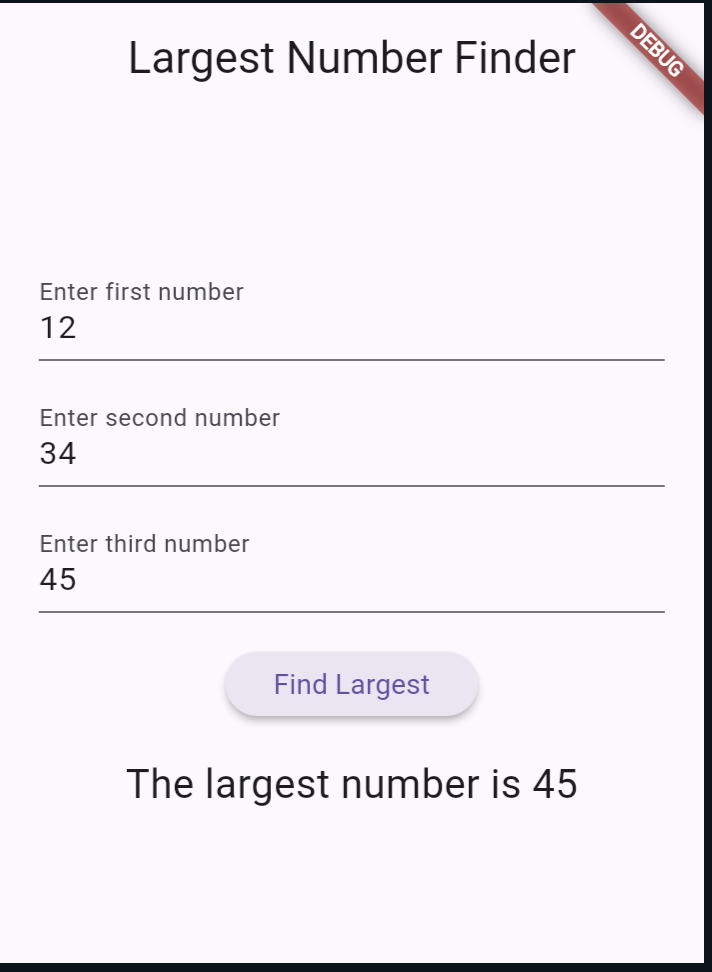
flutter runYou should see the app launch in your emulator or connected device. Enter three numbers and click the “Find Largest” button to see the result.
Output:
Also Read:
Conclusion
In this tutorial, we’ve built a simple Flutter app to find the largest number among three inputs. This example demonstrates the basics of form handling, input validation, and state management in Flutter.
Flutter’s flexibility and rich widgets make it easy to build powerful and user-friendly applications.

About Ambika Dulal
Lead Mobile App Developer and Tech Consultant specializing in Flutter, Dart, and Firebase.