How to Change Text Color in Flutter?

Customize the look and feel of your app by learning to change text color in Flutter, allowing you to create visually appealing user interfaces.
Flutter provides various methods to change text color, offering developers flexibility and control over their app’s appearance.
Whether it’s applying a single color to all text elements or customizing colors based on dynamic conditions, Flutter’s robust framework empowers developers to achieve their desired design outcomes.
Let’s get started.
Table of Contents
5 Ways to Change Text Color in Flutter
In Flutter, you can change the text color in several ways. Here are the common methods.
1. Using the style parameter
This is the most straightforward way to change the text color. You can provide a TextStyle object to the style parameter of the Text widget, and set the desired color using the color property.
Text(
  'Using the style parameter',
  style: TextStyle(
    color: Colors.red,
    fontSize: 20.0,
  ),
),
2. Using a Theme
Flutter provides a Theme that allows you to define the styles for various components, including text. You can define the default text color in the ThemeData and apply it to all Text widgets.
Text(
  'Using a Theme', // Will use the default text color defined in the Theme
),
3. Using the DefaultTextStyle widget
The DefaultTextStyle widget allows you to set the default text style for its child widgets. This can be useful when changing the text color for a specific section of your app.
DefaultTextStyle(
  style: TextStyle(
    color: Colors.blue,
  ),
  child: Column(
    children: [
      Text('Using DefaultTextStyle'),
      Text('Another Text'),
    ],
  ),
),
4. Using a TextSpan
If you need to have different text colors within the same Text widget, you can use a TextSpan and specify the desired color for each part of the text.
Text.rich(
  TextSpan(
    children: [
      TextSpan(
        text: 'Using ',
        style: TextStyle(color: Colors.red),
      ),
      TextSpan(
        text: 'TextSpan',
        style: TextStyle(color: Colors.blue),
      ),
    ],
  ),
),
5. Using a TextStyle instance
You can create a TextStyle instance with the desired color and apply it to multiple Text widgets throughout your app.
final myTextStyle = TextStyle(
  color: Colors.purple,
);

Text(
  'Using a TextStyle instance',
  style: myTextStyle,
),
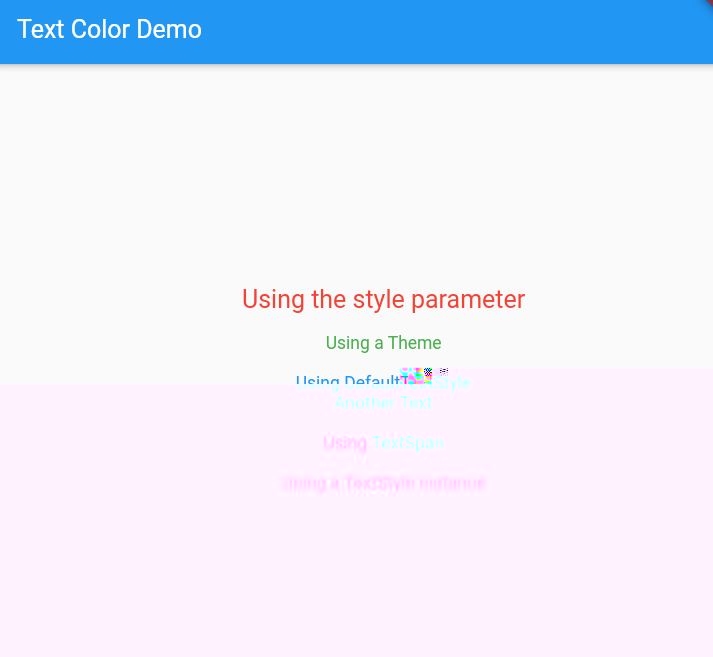
These are the most common ways to change the text color in a Flutter app. The choice of method depends on your specific use case and the level of customization you need.
Full Code to Change Text Color in Flutter App
import 'package:flutter/material.dart';

void main() {
  runApp(MyApp());
}

class MyApp extends StatelessWidget {
  final TextStyle myTextStyle = TextStyle(
    color: Colors.purple,
  );

  @override
  Widget build(BuildContext context) {
    return MaterialApp(
      title: 'Text Color Demo',
      theme: ThemeData(
        textTheme: TextTheme(
          bodyMedium: TextStyle(color: Colors.green), // Use bodyMedium instead of bodyText2
        ),
      ),
      home: Scaffold(
        appBar: AppBar(
          title: Text('Text Color Demo'),
        ),
        body: Center(
          child: Column(
            mainAxisAlignment: MainAxisAlignment.center,
            children: [
              // 1. Using the style parameter
              Text(
                'Using the style parameter',
                style: TextStyle(
                  color: Colors.red,
                  fontSize: 20.0,
                ),
              ),
              SizedBox(height: 16.0),
              // 2. Using a Theme
              Text(
                'Using a Theme', // Will use the default text color defined in the Theme
              ),
              SizedBox(height: 16.0),
              // 3. Using the DefaultTextStyle widget
              DefaultTextStyle(
                style: TextStyle(
                  color: Colors.blue,
                ),
                child: Column(
                  children: [
                    Text('Using DefaultTextStyle'),
                    Text('Another Text'),
                  ],
                ),
              ),
              SizedBox(height: 16.0),
              // 4. Using a TextSpan
              Text.rich(
                TextSpan(
                  children: [
                    TextSpan(
                      text: 'Using ',
                      style: TextStyle(color: Colors.red),
                    ),
                    TextSpan(
                      text: 'TextSpan',
                      style: TextStyle(color: Colors.blue),
                    ),
                  ],
                ),
              ),
              SizedBox(height: 16.0),
              // 5. Using a TextStyle instance
              Text(
                'Using a TextStyle instance',
                style: myTextStyle,
              ),
            ],
          ),
        ),
      ),
    );
  }
}
Output
Related Reading:
Conclusion
After reading this guide, I hope you can change the text’s color using style, theme, DefaultTextStyle widget, TextSpan, TextSyle, etc. in your Flutter App.
Keep Customizing!
Furthermore, to get basic icons for the app, you can simply visit Google’s Material Symbols & Icons website.

About Ambika Dulal
Lead Mobile App Developer and Tech Consultant specializing in Flutter, Dart, and Firebase.