How to Center Align Text Using Alignwidget Flutter?
In this guide, we’ll explore how to use Center Align Text Using Alignwidget Flutter, along with multiple examples to illustrate its usage.
Aligning text is a fundamental aspect of designing user interfaces in Flutter. Whether you’re building a simple app or a complex UI, center-aligning text can significantly enhance readability and aesthetics. In Flutter, one of the ways to achieve text alignment is by using the Align widget.
Table of Contents
What is the Align Widget?
The Align widget in Flutter is used to align its child within itself. It provides properties such as alignment specifying where the child should be positioned within the parent widget.
By adjusting the alignment property, you can achieve various alignments, including center alignment for text.
Started Center Align Text Using Alignwidget Flutter
Before we dive into examples, make sure you have Flutter installed and set up on your machine. You can follow the official Flutter installation guide if you haven’t already done so.
Example 1: Center Aligning Text
Let’s start with a simple example where we center-align a text widget using the Align widget.
import 'package:flutter/material.dart';

void main() {
  runApp(MyApp());
}

class MyApp extends StatelessWidget {
  @override
  Widget build(BuildContext context) {
    return MaterialApp(
      home: Scaffold(
        appBar: AppBar(
          title: Text('Center Align Text'),
        ),
        body: Center(
          child: Align(
            alignment: Alignment.center,
            child: Text(
              'Hello, Flutter!',
              style: TextStyle(fontSize: 24.0),
            ),
          ),
        ),
      ),
    );
  }
}
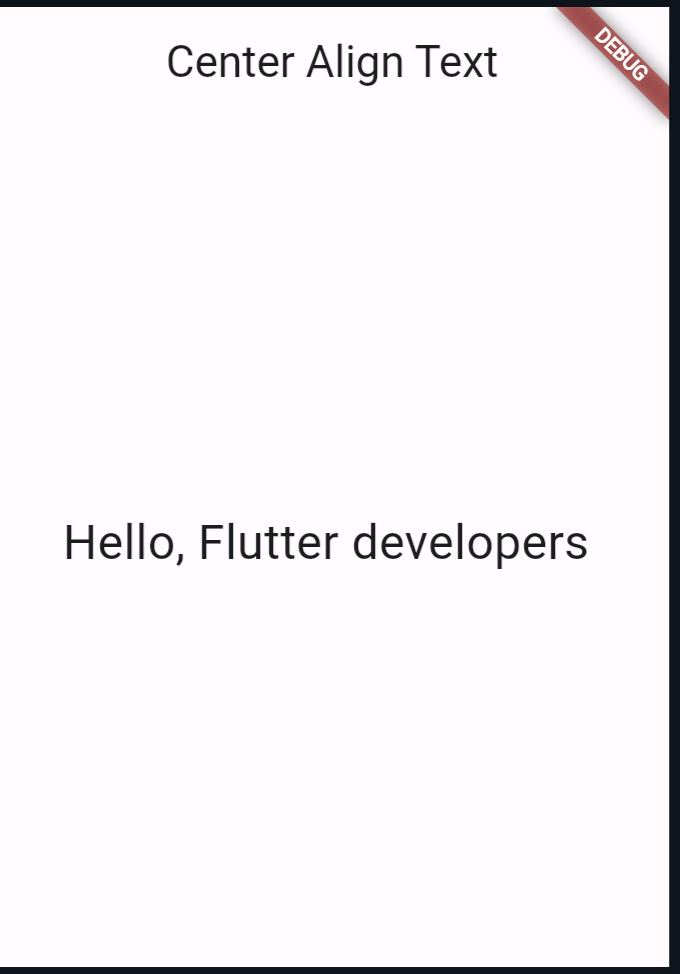
In this example, we use the Align widget with its alignment property set to Alignment.center.
The child of the Align widget is a Text widget with the text ‘Hello, Flutter!’. By wrapping the Text widget with Align and specifying Alignment.center, we center-align the text within the parent widget.
Output:
Example 2: Center Aligning Text Horizontally Only
What if you want to center-align text horizontally but keep it aligned to the top vertically? You can achieve this by adjusting the alignment property accordingly.
import 'package:flutter/material.dart';


void main() {
  runApp(MyApp());
}

class MyApp extends StatelessWidget {
  @override
  Widget build(BuildContext context) {
    return MaterialApp(
      home: Scaffold(
        appBar: AppBar(
          title: Text('Center Align Text Horizontally'),
        ),
        body: Center(
          child: Align(
            alignment: Alignment.centerLeft,
            child: Text(
              'Hello, Flutter developers',
              style: TextStyle(fontSize: 24.0),
            ),
          ),
        ),
      ),
    );
  }
}
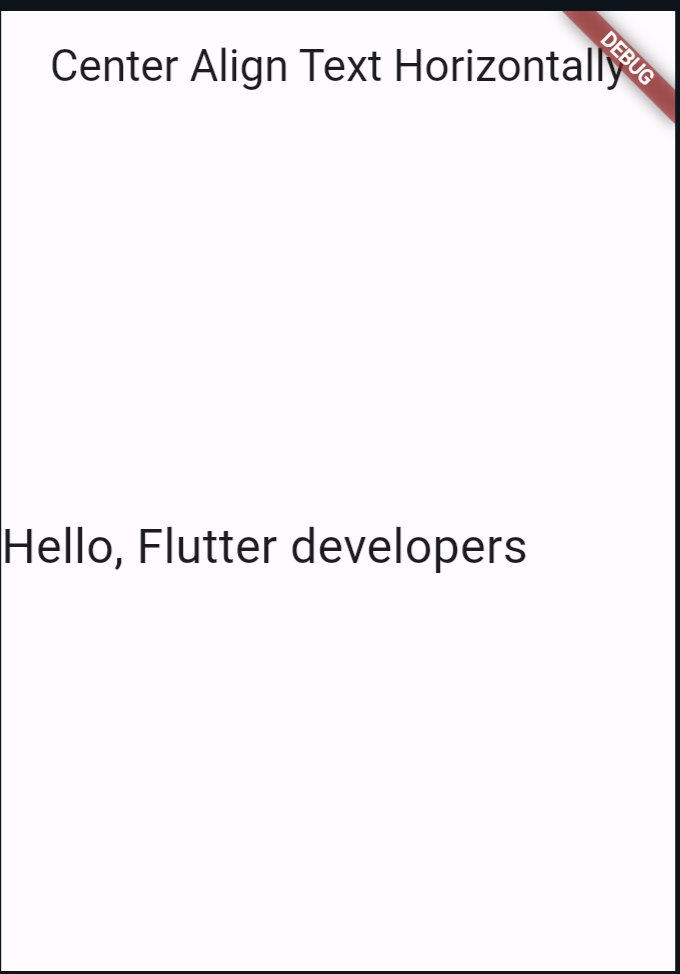
In this example, we’ve set the alignment property of the Align widget to Alignment.centerLeft.
This centers the child widget (text) horizontally within the parent widget while keeping it aligned to the left vertically.
Output:
Example 3: Center Align Text Using Alignwidget Flutter at the Bottom Center
Now, let’s center-align the text at the bottom center of the screen.
// Import statements...

import 'package:flutter/material.dart';


void main() {
  runApp(MyApp());
}

class MyApp extends StatelessWidget {
  @override
  Widget build(BuildContext context) {
    return MaterialApp(
      home: Scaffold(
        appBar: AppBar(
          title: Text('Center Align Text at the Bottom Center'),
        ),
        body: Align(
          alignment: Alignment.bottomCenter,
          child: Text(
            'Hello, Flutter!',
            style: TextStyle(fontSize: 24.0),
          ),
        ),
      ),
    );
  }
}
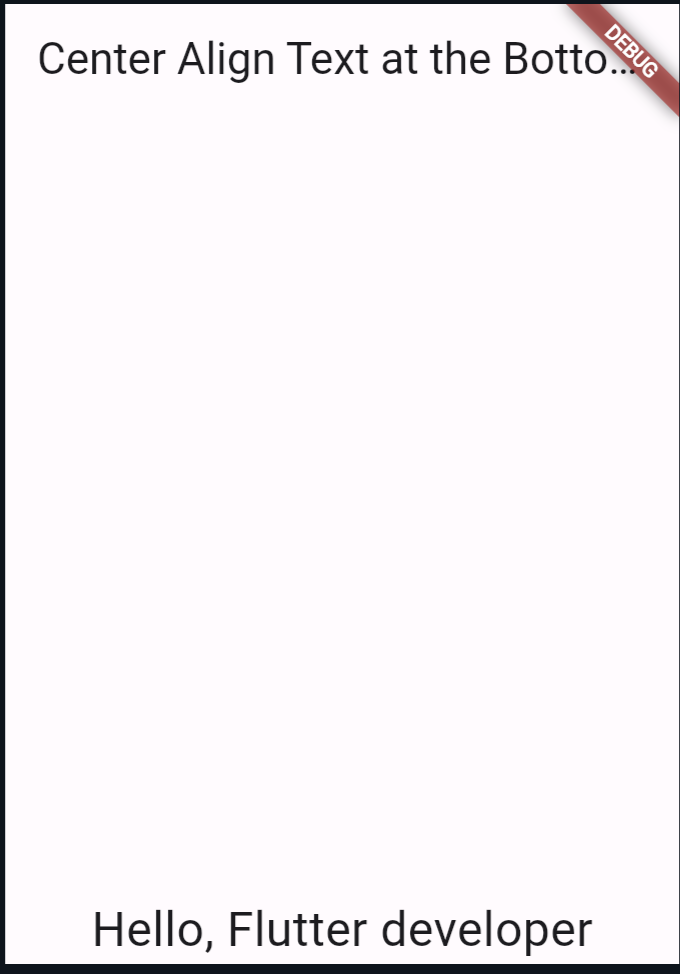
In this example, we’ve set the alignment property of the Align widget to Alignment.bottomCenter. This centers the child widget (text) horizontally at the bottom of the parent widget.
Output:
Also Read:
Conclusion
The Align widget in Flutter provides a simple yet powerful way to align text and other widgets within a parent widget.
Adjusting the
property allows you to achieve various alignments to meet your UI design requirements.
Experiment with different alignment values like bottom center, left center, and top right to create visually appealing layouts for your Flutter apps.
You can follow the official: details of font sizes in Flutter to explore more.

About Ambika Dulal
Lead Mobile App Developer and Tech Consultant specializing in Flutter, Dart, and Firebase.