By the end of this tutorial, you’ll know the Solution of Red text and Yellow underlined below Text in Flutter. let’s dive into the details.
Table of Contents
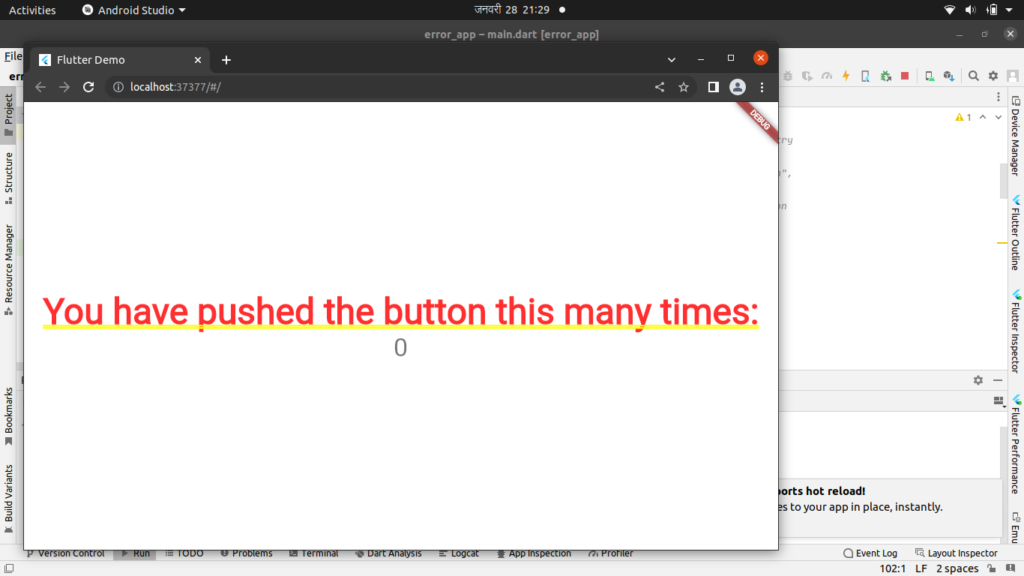
When developing Flutter applications, encountering red text with yellow underlines below might be a common issue. This usually happens when text widgets are not properly wrapped within a Scaffold or any material widgets. In this blog, we’ll explore the reasons behind this issue and provide a practical solution using real Flutter code.
Understanding Red text and Yellow underlined below Text
The red text with yellow underlines indicates a UI issue in your Flutter application. This occurs when there is a missing or improperly placed Scaffold widget in your widget tree. Each page in Flutter should have a Scaffold or another material widget as its parent, ensuring a proper material design structure.
The Problem: Lack of Scaffold
Consider the following scenario where a text widget is not properly wrapped within a Scaffold:
import 'package:flutter/material.dart';

class MyRedTextPage extends StatelessWidget {
  @override
  Widget build(BuildContext context) {
    return Text(
      'This is red text with a yellow underline!',
      style: TextStyle(color: Colors.red, decoration: TextDecoration.underline),
    );
  }
}
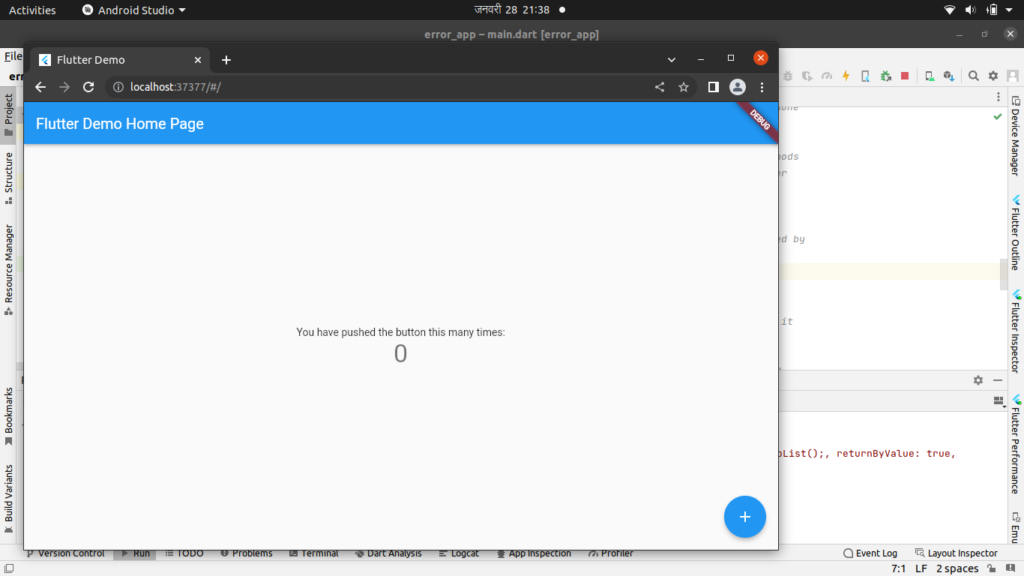
In this example, the text widget is not wrapped with a Scaffold, causing the red text with a yellow underline issue.
The Solution: Wrapping with a Scaffold
To resolve this issue, ensure that your widget tree includes a Scaffold. Here’s an updated version of the code with a Scaffold:
import 'package:flutter/material.dart';

class MyRedTextPage extends StatelessWidget {
  @override
  Widget build(BuildContext context) {
    return Scaffold(
      appBar: AppBar(
        title: Text('Red Text Issue'),
      ),
      body: Center(
        child: Text(
          'This is red text with a yellow underline!',
          style: TextStyle(color: Colors.red, decoration: TextDecoration.underline),
        ),
      ),
    );
  }
}
In this example, we’ve wrapped the Text widget within a Scaffold, providing the necessary material structure for the page.
The Scaffold widget in Flutter provides a basic structure for material design layouts. It includes features like an AppBar for the top, a body for the main content, and other elements like a floating action button. When you encounter the red text with yellow underlines issue, it’s an indication that the text is not properly embedded within a material widget.
By wrapping your layout with a Scaffold, you ensure that the text and other UI elements are part of a material design structure, eliminating the red text issue.
Also, Read Related Tutorials
- Shorebird: The Easy Way to Update Flutter Android Apps
- [Solved] RenderBox was not laid out in Flutter
Conclusion
Red text with yellow underlines below it can be a common issue in Flutter applications, but it’s easily resolved by ensuring that each page or screen has a Scaffold or another material widget as its parent. This simple adjustment will not only eliminate the visual issue but also ensure a proper material design layout for your Flutter app.
Remember to always include a Scaffold in your Flutter widget tree to maintain a consistent and visually appealing user interface.